
How can we help you today?
Search our answers, or browse the topics below. Help is only a few clicks away.
Browse by topic
Pick a category to find the guidance you need.
Quick answers
Search above or open a question below.
How do I place an order?
Visit the QuickBooks Desktop 2024 product page, choose the edition and user count you need, and select Buy now. Enter your email at checkout, review the USD total, and complete payment. We use that email for your order and delivery messages.
What happens after I pay?
After payment is confirmed, we email your order confirmation. We also send the official download link, activation details, and installation guide when your license is ready. Some editions are delivered automatically; if you do not receive the details within four hours, contact us with your order reference.
When will I receive my download and license details?
Your download and license details are sent digitally to the email entered at checkout after payment is confirmed. Automatic delivery is available for configured editions; other orders are completed within four hours. Check your inbox and spam folder, and read our delivery details if you need help. No physical box is shipped.
I entered the wrong email address. What should I do?
Contact contact@quicklicenses.us or WhatsApp as soon as possible. Include your order reference and the correct email address. We will verify the order before changing the delivery address. Do not send payment details or a complete license key in a general message.
I cannot find my order email. Where should I look?
Check the inbox, Spam, Junk, and Promotions folders of the address used at checkout. Search for “QuickLicenses” and your order reference. If it is still missing, contact support so we can check delivery and help you receive the message.
How do I download the software?
Use the official Intuit Downloads & Updates page or the product-specific Intuit link in your delivery email. Choose the country, product, and 2024 version (24.0 for Enterprise) that match your order, then select Search and Download. Our installation guide explains each step.
How do I activate my license?
Install the matching edition, then enter the License Number and Product Number from your delivery email when QuickBooks asks for them. Follow the on-screen registration and activation prompts. If a Validation Code or Property Code is requested for your edition, use the details supplied with your order. See the installation guide for Windows and Mac instructions.
What should I check before installing?
Check that your installer matches your purchased Windows or Mac edition and review Intuit’s 2024 system requirements. For a Windows edition, use a supported 64-bit system with at least 8 GB RAM and enough free storage. For Mac 2024, check the macOS version. If you already have a company file, make and verify a backup before upgrading.
What payment methods can I use?
Orders are charged in US dollars. The available payment methods appear on the secure Stripe checkout page and can vary by country and device. Your QuickLicenses order is a single payment; check the total before confirming it.
Will I receive a payment receipt?
We email an order confirmation with your order reference, purchased item, and amount paid to the address entered at checkout. If you need a separate invoice or cannot find the confirmation, contact us with your order reference.
What is your refund policy?
Please read the refund policy before ordering. Contact us within 72 hours of confirmed payment for a refund request. If we cannot deliver the license, or it is invalid or materially different from the listing, we will investigate and provide a replacement or refund as described in that policy. Rights required by law remain available.
Which QuickBooks Desktop editions are shown here?
The current product page offers Pro Plus 2024 for Windows with 1 or 3 users, Desktop for Mac 2024 with 3 users, and Enterprise 2024 for Windows with 1, 3, or 30 users. Choose the operating system and user count shown for the exact option you purchase.
Can I use a Windows edition on a Mac?
The Windows and Mac editions are separate. Choose QuickBooks Desktop for Mac 2024 for a native macOS installation. Running a Windows edition through virtualization requires a compatible Windows setup and is not the same as buying the Mac edition.
How do I choose the right user count?
Choose 1 user for one person, or a 3-user option when up to three licensed users need access to the same company file. The 30-user option is available for Enterprise, not Pro Plus. For shared Windows company files, the host needs QuickBooks Database Server Manager; see our installation guide. Intuit lists a maximum of three concurrent users for Desktop Pro and up to 30 for Enterprise.
What is the license term?
QuickLicenses sells these QuickBooks Desktop 2024 listings as one-time purchases with lifetime activation for the purchased desktop version. Your QuickLicenses checkout has no recurring charge. Payroll, connected services, future versions, updates, and publisher support may have separate terms; check the exact edition and store terms before ordering.
What if installation does not finish?
Check the exact error message, confirm that the installer matches your edition and operating system, and review Intuit’s installation instructions. Back up any existing company file before retrying. If the error continues, contact us with your order reference and a screenshot that does not reveal your full license number.
Can I move an existing company file?
Yes. In the older QuickBooks version, create a local .QBB backup. Open QuickBooks Desktop 2024 and choose File → Open or Restore Company, then follow the upgrade prompts for a compatible file. Keep the original backup because an upgraded file may not open in the older version. Check Intuit’s company-file guide for your edition.
What if activation shows an error?
Check that the installed edition and year match your order, then re-enter the License Number and Product Number carefully. On Windows, press F2 to view Product Information and confirm the edition. If the error remains, contact support with your order reference and the exact error. Do not send a complete license key in an unsecured message.
How do I contact QuickLicenses?
Email contact@quicklicenses.us, message +1 747 332 1379 on WhatsApp, or use the contact page. Include your order reference so we can find the right purchase.
What information should I share with support?
Share your order reference, purchased edition and user count, operating system, and the exact error message. A screenshot can help, but cover your full License Number, Product Number, Validation Code, Property Code, payment details, and passwords before sending it.
No answers matched your search. Contact our team for help.
Guides & deep dives
Step-by-step reading for your next decision.
 BUYING GUIDEHow to buy QuickBooks Desktop with confidenceRead guide →
 MAC GUIDEQuickBooks Desktop for Mac: what to checkRead guide →
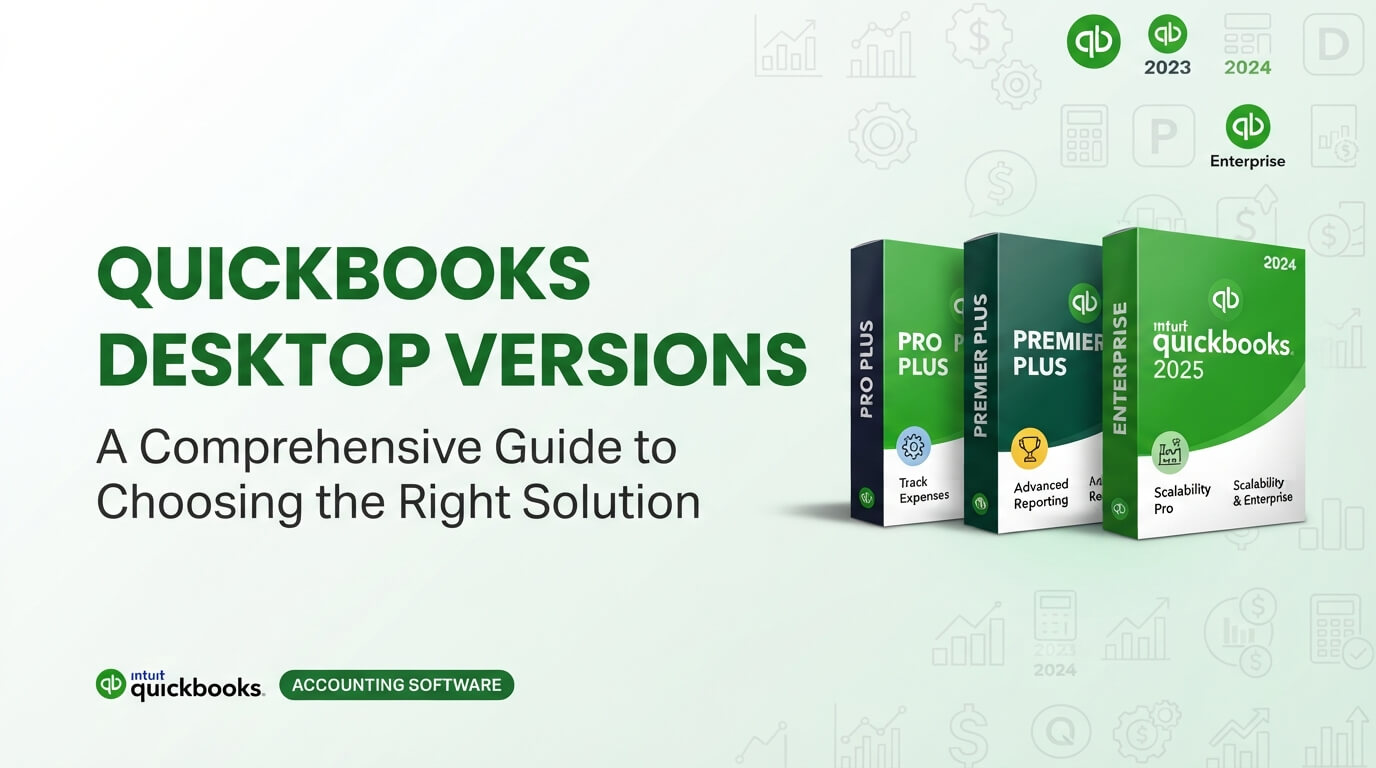 VERSION GUIDEUnderstanding Desktop editions and versionsRead guide →
Still need a hand?
Send us your order reference and a short description of what you need.
Ready to choose your QuickBooks 2024 edition?
Compare the current Windows and Mac options, user counts, and one-time prices before ordering.
